
A designer's field guide
From idea to testable prototype
Writing code is no longer the hardest part of prototyping. The bottleneck is keeping everything coordinated. Here is the workflow I use to turn ideas into working apps using Claude Code, AntiGravity, and Figma.
Learn by playing
Desktop: arrow keys to move, space to interact. On a phone, use the on-screen buttons (◀ ▲ ▶ and A); during NPC dialogue the buttons hide so you can read. Tap the text box to continue.
Built for prototype-starter
Clone the workspace to get started, then follow this playbook step by step.
Building prototypes quickly with AI takes a clear step-by-step workflow — one that ties your designs, your data, and your tests together instead of leaving them to drift apart.
00 Pre-flight checklist
- Open the terminal
Your terminal. Press Cmd + J (Mac) or Ctrl + ` (Windows), or go to View → Terminal in your IDE.
- Don't panic on red
If you get an error, copy it, paste it into the chat, and ask the model to help you fix it.
- Run setup first
Follow the installation steps in SETUP.md before starting the phases below.
01 The tools
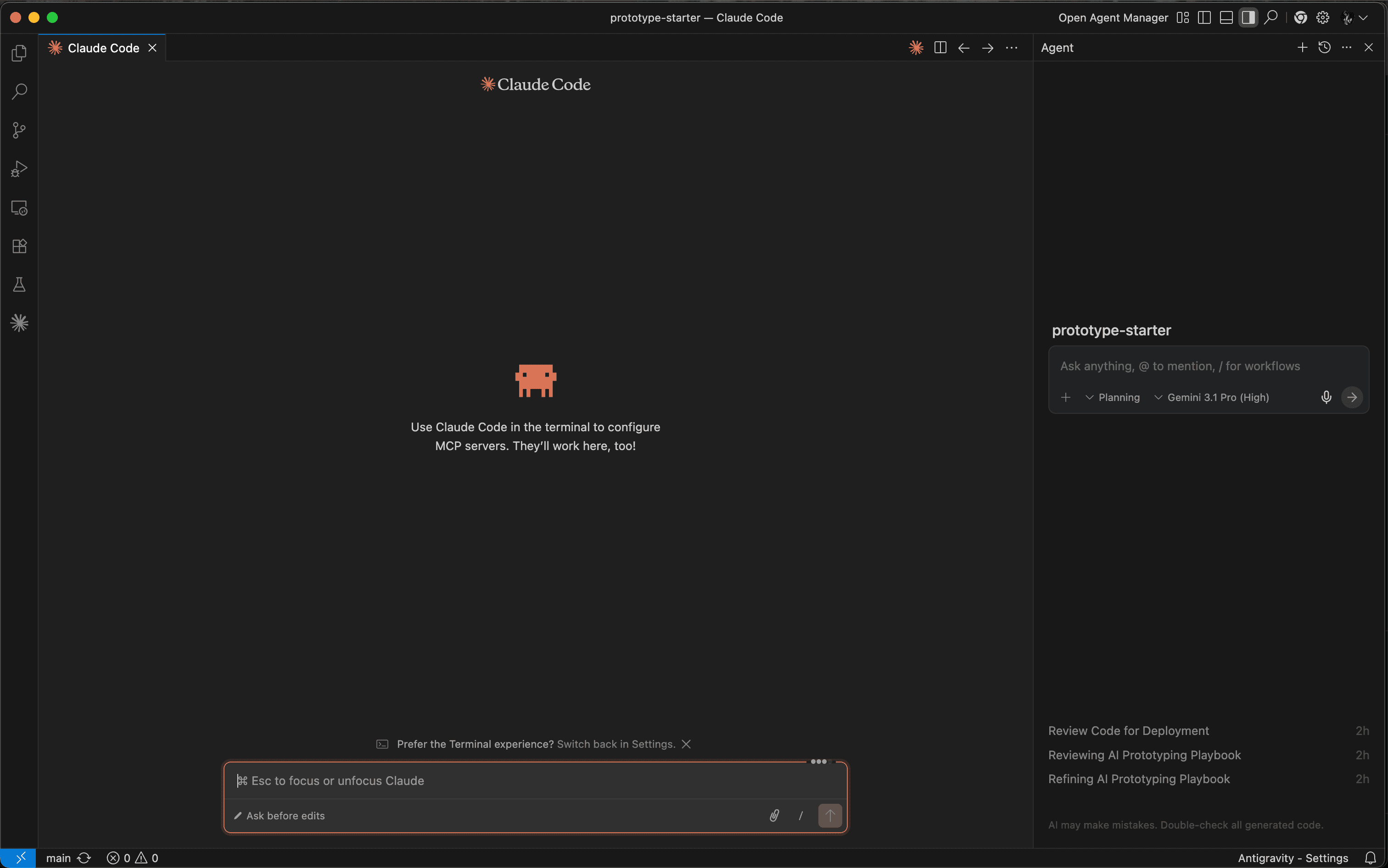
I use two AI interfaces. You can switch between them depending on whether you want keyboard-driven terminal speed or visual chat in the IDE.
Terminal-First Execution
Claude Code
Run claude in your terminal to edit files and run commands.
- • Pulls Figma design data via MCP
- • Runs terminal tests and compilations
- • Fast file edits and system operations
IDE-Integrated Agent
AntiGravity
Use AntiGravity in your IDE panel to handle larger file edits and background tasks using rules in .agents/.
- • Image-to-code visual conversion
- • Multi-step background workflow runs
- • Automatically executes tasks in sandbox
Reading Figma via MCP
Instead of exporting screenshots, set up the Figma MCP server. This lets Claude Code read styles and layouts directly from your design files.
claude mcp add figma npx -y \
  @modelcontextprotocol/server-figma \
  <YOUR_FIGMA_TOKEN>
- Create a token in Figma settings.
- Run the setup command in your terminal.
- Paste a Figma frame URL into the prompt to generate the code.
02 The lifecycle
💡 Phase 1
Brainstorming and scoping
Write down your ideas first. I draft a simple specification file at docs/prds/idea.md. You can ask Claude Code to analyze the scope and list the key tasks you need to build.
🎨 Phase 2
Visual design in Figma
Design the layout, typography, and spacing in Figma. Use auto-layout so the structure is clear. The cleaner your Figma file, the easier it is for the model to convert it to code.
⚙️ Phase 3
Design-to-code setup
Use the Figma MCP server to connect your canvas. Give the model the URL of your Figma frame:
design.md, convert this Figma frame into a React component: figma.com/file/...”The model reads the layout and colours, then writes the React code. Run npm run dev to check it at localhost:3000.
🔥 Phase 4
State and database setup
Connect your UI to the database. Set up Firebase Auth and Firestore, copy the keys to .env.local, and ask the agent to hook up the forms:
firebase-firestore skill, save these form submissions to the Firestore database.”✨ Phase 5
Refining the layout
Clean up the styling, accessibility, and page load speed. Run automated checks to catch issues:
npx impeccable audit to check this file against our design tokens and fix spacing.”🔐 Phase 5.5
Security and speed checks
Double-check your API routes and forms. Ask the model to verify input validation, secure database paths, and remove unused code to make the page load faster.
📦 Phase 5.9
Git commit and push
Create a git branch and push your changes. If you want, you can let the agent stage and commit for you:
🚀 Phase 6
Deploy previews
Connect your GitHub repository to Vercel. Add your environment variables in the dashboard and deploy. Vercel will give you a live URL that updates every time you push to GitHub.
🔄 Phase 7
Gather feedback and iterate
Test the live URL with real users. Paste user feedback, error logs, or notes into the chat:
Use those tickets to start the next iteration.
03 Quick reference
UI Review
/critique components/Button.tsx
Get design and UX feedback on a component.
Mobile Fix
/adapt components/Navbar.tsx
Make any component responsive and mobile-friendly.
Animation
/animate components/Modal.tsx
Add motion to a component.
Design Question
/designer What's the best pattern for a multi-step form?
Ask design and UX questions.
Audit
/audit
Run an accessibility and spacing audit.
Polish
/polish
Clean up rough edges and apply final styling details.
Want to collaborate or chat about design?
I'm always happy to connect, whether it's about a project, a role, or just swapping ideas.